FEM
Finite element code using AceFEM/AceGEN tools in Mathematica.
The models is able to represent an hyperelastic heterogenous vascular wall including the description of the atherosclerotic plaque and G&R model based on the homogenous stress hypothesis , more details here.
The hyperelastic model is based on Yeoh strain energy density function, more information here.
The solving procedure utilizes the following AceGEN elements:
O2P1YG: 3D tetrahedra with quadratic shape function used to represent the vascular wall (and linear shape function for the boundary pressure) and the G&R algorithm.BoundaryPressureP2: 3D triangles with quadratic shape function used to apply the boundary pressure.
More details about the elements can be found in the Elements section.
Solving procedure
The solution procedure is mainly implement in the growth.nb file, which is a Mathematica notebook, described in the following.
Note
growth.nb contains several auxiliary functions, such as the loading conditions, the post-processing routines, and the exportation of the results. These auxiliary functions are described in the auxiliary functions section.
The auxiliary package is mainly structured into four subpackages:
myFileName.m. This subpackage contains the definition of the file names, which is used to save the results. It automatically retrives the correct paths based on the notebook directory and the user directory.
myLoading.m. This subpackage allows to load the mesh and the material properties as well as set up the FEm problem in term of material properties and boundary conditions.
myPostAuxialiars.m. This subpackage contains the post-processing routines, which are used to compute several quantities between each solving step as well as drive the convergence procedure.
myExpRoutines.m. This subpackage contains the exporting routines, which are used to save the results in the correct format.
growth.nb
An example of the solving notebook is shown here.
The procedure is mainly divided into the following steps:
Load the mesh and the material properties (interpolating functions) from the
NotebookDirectory[]<>/mesh/folder.Set up the FEM problem in term of material properties and boundary conditions. This is mainly automazione with the
myLoadingpackage.Solve the FEM problem using the
myPostAuxialiariestools to deal with the intra-step post-processing (like the reading of thefor each element) and the convergence procedure.
Export the results using the
myExpRoutinespackage.
Note
The notebook should be placed in the patient folder, e.g. the same folder as the mesh folder, which contains the mesh and the material properties.
Load mesh and material properties
This section add to the the system paths the axuFncs package location, relatively to the notebook directory. Then load the package.
<< auxFncs`
Warning
You need to add the path to the axuFncs package in the Mathematica $Path variable, see also the Mathematica auxiliary functions page.
Then the mesh is loaded:
meshPath = FileNameJoin[ NotebookDirectory[], "/mesh"];
{nodes, connectivity, lumen, fixed} = loadMesh[meshPath];
And the material distribution:
matxTruthTable = loadMATXtruthTable[meshPath]
The material coefficients  are defined into the my_loading.m package.
Definition of the mesh, load and boundary conditions
The mesh is defined using the O2P1YG element assigned with nodes``and ``connectivity, and the pressure boundary conditions are defined using the BoundaryPressureP2 element assigned with lumen.
Note
The boundary pressure is assigned as ElementData and need to be updated before/during the solving procedure.
Top and bottom surfaces are fixed. The position of the fixed nodes is specified in the fixed list.
The findMaterialFunction extract the exact ratio of the materials for each element, based on the matxTruthTable. For each element, the ratio is an association strucutre like:

where ![a,b,c,d \in [0,1]](../_images/math/35c50b6bd5f39cd49223ef746a16eca161a6aff2.png) are the ratio of the materials in the element.
are the ratio of the materials in the element.
This is then assigned to the O2P1YG elements using setMaterialsNew function:
elementMaterialRatios = findMaterialRatio[matxTruthTable];
setMaterialsNew[elementMaterialRatios];
Three other commands are needed to set up the FEM problem and the pre-load the wall nodes and elements:
<< auxFncs`myPostAuxiliaries`
<< auxFncs`myPostAuxiliaries`
trueNodes = identifyWallNodes[wallElementsQ];
Warning
The << auxFncs`myPostAuxiliaries needs to be called twice, this is a bug that should be fixed.
Solution algorithm
A load history is used to drive the boundary pressure and a growth history is used to modulate the G&R algorithm.
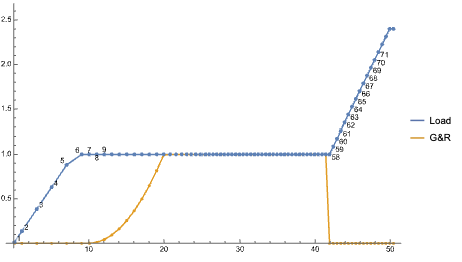
The functions are defined into the my_post_auxiliaries.m package with respect to the simulation time as argument:
![\lambda p[t]](../_images/math/65427595146e39a4b69fcebe40892c4d9cdbe3df.png) drive the pressure linear increase up to MAP (it stops after the growth is activated)
drive the pressure linear increase up to MAP (it stops after the growth is activated)![\lambda g[t]](../_images/math/3fc925f05077f331b97c7b08ce9827059ed18b97.png) drive the growth linear increase up to 1 once the growth is activated
drive the growth linear increase up to 1 once the growth is activated![\lambda p2[t]](../_images/math/4c891d4368f0686dd78d67e0ed58ce3603d74a25.png) drive the linear growth increse from MAP to systolic pressure, after the growth is computed
drive the linear growth increse from MAP to systolic pressure, after the growth is computed
For each solving step, the pressure is assigned using the DomainData of the BoundaryPressureP2 element while the growth properties are assigned by the postProcess[t] function, defined in the my_post_auxiliaries.m package.
(* ... previous step convergence true ... *)
t = SMTRData["Time"];
SMTDomainData["DΩ", "Data", "p*" -> N[If[growthEnded, λp2[t], λp[t]]*p]];
postProcess[t];
SMTPut[SMTData["Step"], {t, If[growthEnded, λp2[t], λp[t]], λg[t, growthEnded], σ1WallAV, σ1STD, σ1Max, growthConvergence}];
SMTNextStep["Δt" -> step[[2]], "λ[t]" -> λp]
Post processing and save data
A very brief post-processing is performed in the Mathematica notebook, mainly to export the results in the correct format for the Python post-processing. See the Python package info for more details.
In addition a .JSON file is exported containing the convergence information for each step and the material distribution for each element:
Field |
Type |
Description |
|---|---|---|
|
Number |
The maximum load value. |
|
Number |
MAP (Mean Arterial Pressure) value or equivalent metric. |
|
Number |
Total number of steps in the growth process. |
|
Array of Numbers |
List of time values for each step. |
|
Array of Numbers |
Load multipliers corresponding to each time step. |
|
Array of Numbers |
Growth multipliers corresponding to each time step. |
|
Number |
The first partial step in the growth process. |
|
Number |
The first complete step in the growth process. |
|
Number |
The last complete step in the growth process. |
|
Object |
Dimensions of the global domain in the X, Y, and Z directions. |
|
Object |
Boundary values of the global domain in the X, Y, and Z directions. |
|
Object |
Volume details of different components within the global domain. |
|
Object |
Dimensions of the plaque region in the X, Y, and Z directions. |
|
Object |
Boundary values of the plaque region in the X, Y, and Z directions. |
|
Object |
Center coordinates of the plaque region in the X, Y, and Z directions. |
|
Object |
Volume details of different components within the plaque region. |
|
Object |
Distribution percentages of various components in the plaque region. |
|
Array of Numbers |
List of wall element identifiers in the global domain. |
Elements
The used FEM element are described in the Elements section.