Patient-specific information module
Python package to handle patient-specific information, from the medical images to the FEM analysis results.
Overview
The myPatient module is designed to handle patient-specific data, combining both Finite Element Method (FEM) and clinical data to automate the analysis process. It loads and processes 3D mesh data, clinical data from NRRD files, and FEM results, providing several methods to visualize and analyze the patient’s anatomical and mechanical properties.
Functionalities
Key functionality includes:
Complex mesh handling: Loads 3D mesh data from external files (HDF5 format), computes anatomical radii, and visualizes meshes with or without material segmentation.
FEM analysis: Integrates FEM results, loads clinical and FEM data, updates JSON files with new results, and displays or compares FEM fields across simulation steps.
Clinical data integration: Handles clinical volumetric data, allowing visualization and manipulation of medical imagery and segmentation, such as walls, lumen, and plaques.
Material segmentatio: Loads and displays segmented materials based on node indices and integrates this with mesh visualization.
Histograms & comparisons Allows users to generate histograms for mechanical fields and compare results between different simulation steps.
Warning
This modules was initally build to hande the patient-specific data from the Karolisnka Istutute (Stokholm, Sweden). Some functionalities may not be suitable for other applications, like the NRRD file processing.
Usage
Load the patient basic information:
import myPatientsModulesV2.patientMain as pt
my_data = pt.myPatient(ptName)
Or using the patient folder (corresponding to the name) and it path:
import myPatientsModulesV2.patientMain as pt
my_data = pt.myPatient(ptFolder, ptPath)
FEM Information
You can read the entire JSON output:
my_data.showFEMJSON()
Where the patient.json is structured with:
Field |
Type |
Description |
|---|---|---|
|
Number |
The maximum load value. |
|
Number |
MAP (Mean Arterial Pressure) value or equivalent metric. |
|
Number |
Total number of steps in the growth process. |
|
Array of Numbers |
List of time values for each step. |
|
Array of Numbers |
Load multipliers corresponding to each time step. |
|
Array of Numbers |
Growth multipliers corresponding to each time step. |
|
Number |
The first partial step in the growth process. |
|
Number |
The first complete step in the growth process. |
|
Number |
The last complete step in the growth process. |
|
Object |
Dimensions of the global domain in the X, Y, and Z directions. |
|
Object |
Boundary values of the global domain in the X, Y, and Z directions. |
|
Object |
Volume details of different components within the global domain. |
|
Object |
Dimensions of the plaque region in the X, Y, and Z directions. |
|
Object |
Boundary values of the plaque region in the X, Y, and Z directions. |
|
Object |
Center coordinates of the plaque region in the X, Y, and Z directions. |
|
Object |
Volume details of different components within the plaque region. |
|
Object |
Distribution percentages of various components in the plaque region. |
|
Array of Numbers |
List of wall element identifiers in the global domain. |
Or you can access to a specif field directly, for instance the simulation convergence and steps:
growthMultiplierStep=my_data.FEMinfo['Growth']['GrowthMultiplier']
indexes = [index for index, value in enumerate(growthMultiplierStep) if value > 0]
plt.figure(figsize=(8, 5))  # Adjust the figure size as needed
plt.plot(growthMultiplierStep, marker='o', linestyle='-', color='b', label='growthMultiplierStep')
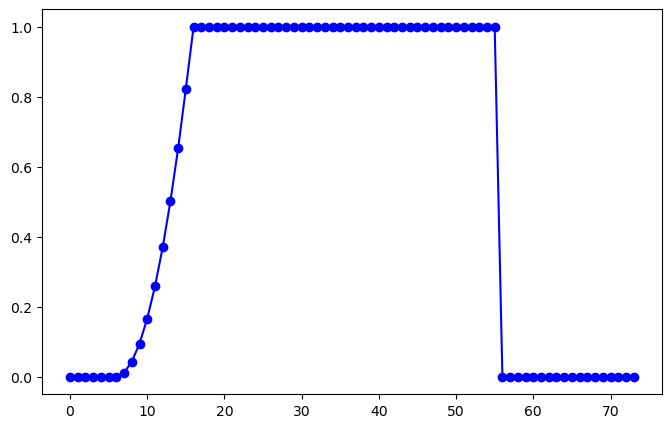
Growth steps in the solution procedure
FEM results
It is possibile to post the field using the following command:
my_data.showField(fieldName='σ1',step=step, GRLab='G&R',scaling='kPa',slices=False, plotter = p)
where:
fieldName: the AceFEM field namestep: the simulation step (integer). It is possible to extract it directly from the JSON file, for instancemy_data.growthStep['MAP'].GRLab: the label for the plot. UseClassicorG&Rto compare the two different solving approach.slices: if True, the field is plotted in slices.plotter: the plotter object. If not provided, a new plotter is created.normal: if provided, the slices is plotted in a specific direction.center: if provided, the slices is taken in a specific point, otherwise the center of the domain is used.
Note that the function showField makes implicit use of the getField function, which is used to extract the field from the output file. Using the plotter argument it is possiible to create more complex pyvista figures:
import pyvista as pv
clim=[-10,80]

p=pv.Plotter(shape=(1,2))
p.subplot(0,0)
p.add_mesh(my_data.mesh, color='gray', opacity=0.2)
my_data.getField(fieldName='σ1',step=my_data.classicStep['MAP']+1,GRLab='Classic',plotter=p, clim=clim, scaling='kPa')
p.camera_position = [(-0.03077422099276556, 0.13811502924746508, 0.03728788325850183),
(0.014049556983339425, 0.01644614534581574, 0.06849999633549908),
(-0.061262560400078124, 0.22678485897457887, 0.9720162171656948)]

p.subplot(0,1)
p.add_mesh(my_data.mesh, color='gray', opacity=0.2)
my_data.getField(fieldName='σ1',step=my_data.growthStep['MAP'],GRLab='G&R',plotter=p, clim=clim, scaling='kPa')
p.camera_position = [(-0.03077422099276556, 0.13811502924746508, 0.03728788325850183),
(0.014049556983339425, 0.01644614534581574, 0.06849999633549908),
(-0.061262560400078124, 0.22678485897457887, 0.9720162171656948)]

p.show()
Advanced treesholding
Example of volumetric treesholding:
th=5
fieldName='σ1'
scaling='kPa'
scalingFac = pt.computeScaleFactor(scaling)
pv.global_theme.allow_empty_mesh = True
p=pv.Plotter(shape=(1,3))
p.subplot(0,0)

mesh=my_data.mesh
step=my_data.classicStep['MAP']
GRLab='Classic'
field=str(fieldName)+'_step_'+str(step)+'_'+GRLab
mesh[field]=scalingFac*my_data.fields[(step,fieldName,GRLab)][0:len(mesh.points)]
mesh=mesh.threshold(value=th, scalars=field, invert=True)
p.add_mesh(mesh, scalars=field, clim=[-10, th], cmap='jet', show_scalar_bar=True)

p.subplot(0,1)
my_data.getMaterials(slices=False,plotter=p)

p.subplot(0,2)
step=my_data.growthStep['MAP']
GRLab='G&R'
field=str(fieldName)+'_step_'+str(step)+'_'+GRLab
mesh[field]=scalingFac*my_data.fields[(step,fieldName,GRLab)][0:len(mesh.points)]
mesh=mesh.threshold(value=th, scalars=field, invert=True)
p.add_mesh(mesh, scalars=field, clim=[-10, th], cmap='jet', show_scalar_bar=True)

p.show()
Histogram plot and comparisons
Automatic functions to compute, plot and compare histograms:
my_data.compareHist(fieldName='σ1', classicStep=my_data.classicStep['MAP'], growthStep=my_data.growthStep['MAP'],scaling='kPa',bins=300,clim=[-10,100])
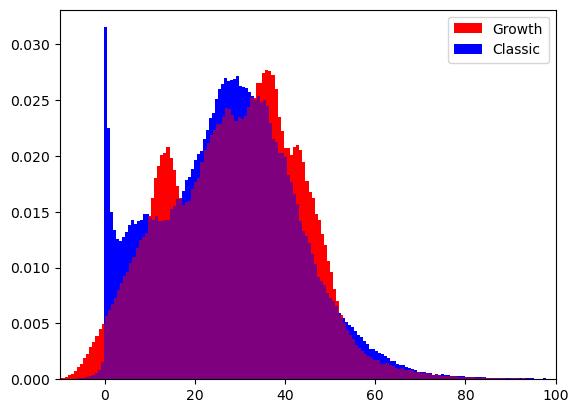
Histogram of the stress field comparing the G&R solution with the classic one.
Medical data
Material plots:
scale=1
ws=[scale*1000,scale*600]

p= pv.Plotter(shape=(1, 3))

mesh=my_data.mesh
mesh.set_active_scalars("matsSegmented")

calc = mesh.threshold([-0.1,0.1])
lipid = mesh.threshold([1.9, 2.1])
fibr = mesh.threshold([2.9, 3.1])

p.subplot(0, 0)
p.add_mesh(mesh,color='red',opacity=0.1)
p.add_mesh(calc, color = 'navy', opacity=0.3,  label='CALC')
p.camera_position = camera

p.subplot(0, 1)
p.add_mesh(mesh,color='red',opacity=0.1)
p.add_mesh(lipid, color = 'orange', opacity=0.3,  label='LRNC')
p.camera_position = camera

p.subplot(0, 2)
p.add_mesh(mesh,color='red',opacity=0.1)
p.add_mesh(fibr, color = 'darkred', opacity=0.3,  label='FIBR')
p.camera_position = camera

scale=10
ws=[scale*1000,scale*600]
p.show()
p.screenshot(outputPath+'test.png', window_size=ws)